“Woocommerce Cybersource Secure Acceptance (SOP) Payment Gateway” Documentation by “Nepcode” v1.0
“Woocommerce Cybersource Secure Acceptance (SOP) Payment Gateway”
Created: March 11, 2017
By: Nepcode
Email: nepcode10@gmail.com
Thank you for purchasing my Plugin. If you have any questions that are beyond the scope of this help file, please feel free to email via my user page contact form here. Thanks so much!
Table of Contents
- Installation
- Settings Page
- Gateway Settings
- Payment Gateway Form Preview
- Capture Authorised order
- Actions
- Filters
!!! NOTE: !!!
To configure the plugin:
- First, ensure that Secure Acceptance Silent Order Post is enabled for your cybersource account
- Create a Profile Id: log into the CyberSource Business Center and go to Tools & Settings->Profiles->Create New Profile
- Generate an Access Key : log into the CyberSource Business Center and go to Tools & Settings->Profiles->Profile Name->Security->Create New Key->Give it a Name->Generate Key
- Generate a Secret Key: log into the CyberSource Business Center and go to Tools & Settings->Profiles->Profile Name->Security. The Secret Key is automatically generated from the previous step.
- Make sure to disable test/debug modes in the WooCommerce Settings page prior to accepting live transactions!
To configure CyberSource:
- Log into the CyberSource Business Center
- Go to Tools & Settings->Profiles->Profile Name->Payment Settings.
- Click 'Save' at the top\bottom of the page.
- Ensure that the supported Credit\Debit Cards are added to the Payment Method list that you selected in the WooCommerce plugin settings are also listed.
- Under 'Customer Response Pages' set the 'Hosted by you URL' to https://www.example.com/?wc-api=wc_gateway_cybersource_secure_acceptance_sop_response where www.example.com is the host name of your server
- Click 'Save' at the top\bottom of the page.
A) Installation - top
Manual Installation:
Upload the dt-cybersource-secure-acceptance-sop folder to the /wp-content/plugins/ directory
Once Plugin is uploaded to plugins folder, you will see the Dt Cybersource Secure Acceptance SOP Plugin in your plugins list as below:
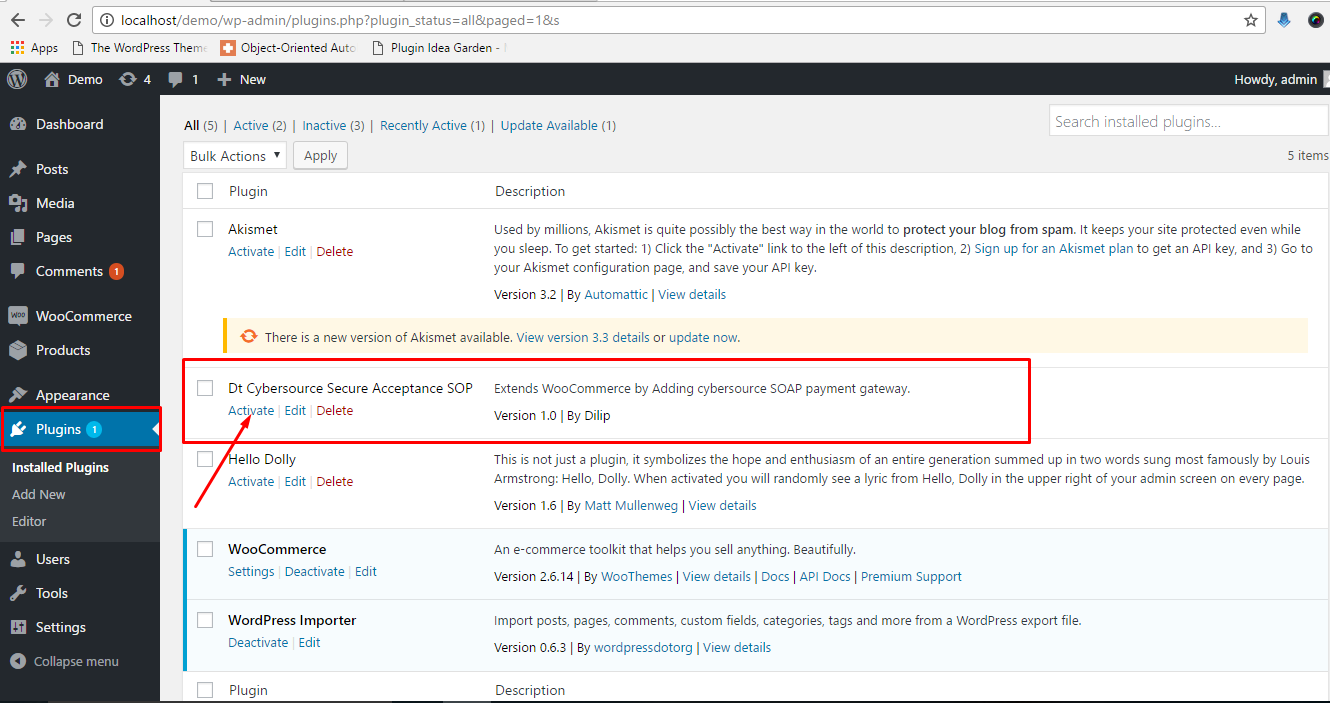
Activate the plugin by clicking the Activate link.
B) Settings Page - top
Once plugin is activated, click the Settings Link as shown below:
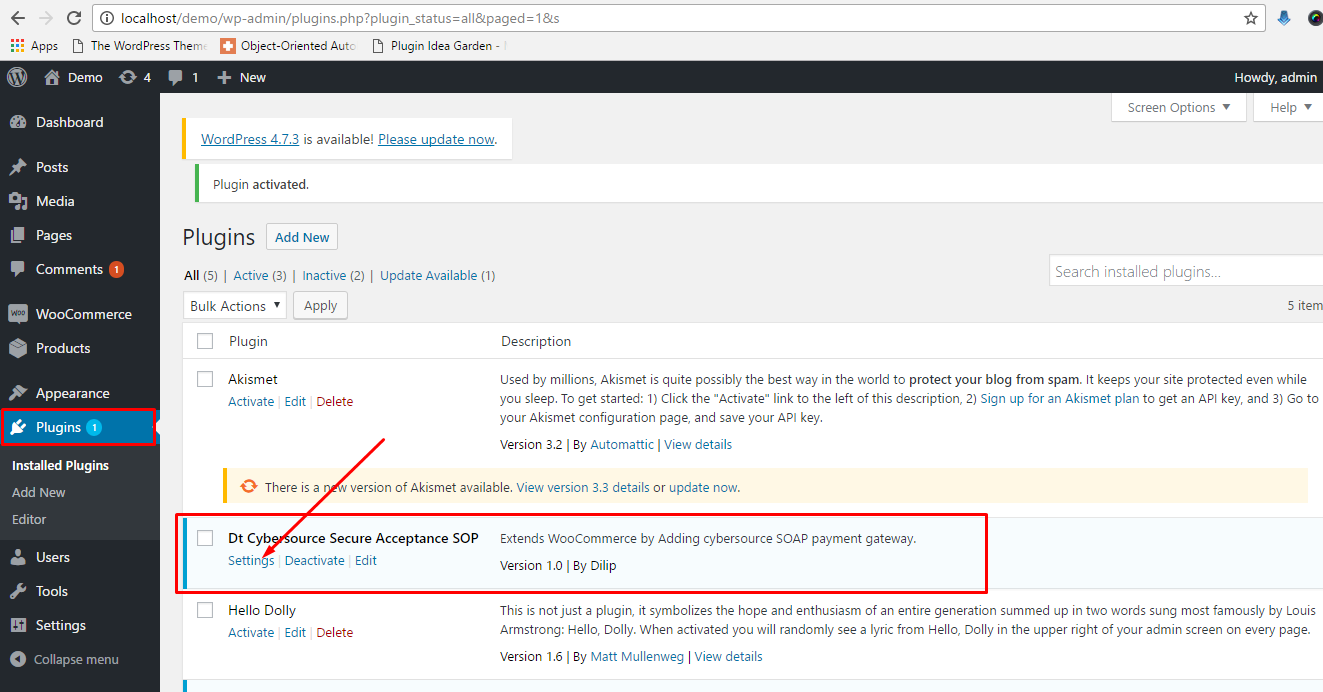
Or you can go to WooCommerce ->Settings Click on Checkout Tab-> Then Click Dt Cybersource Secure Acceptance SOP as shown below:
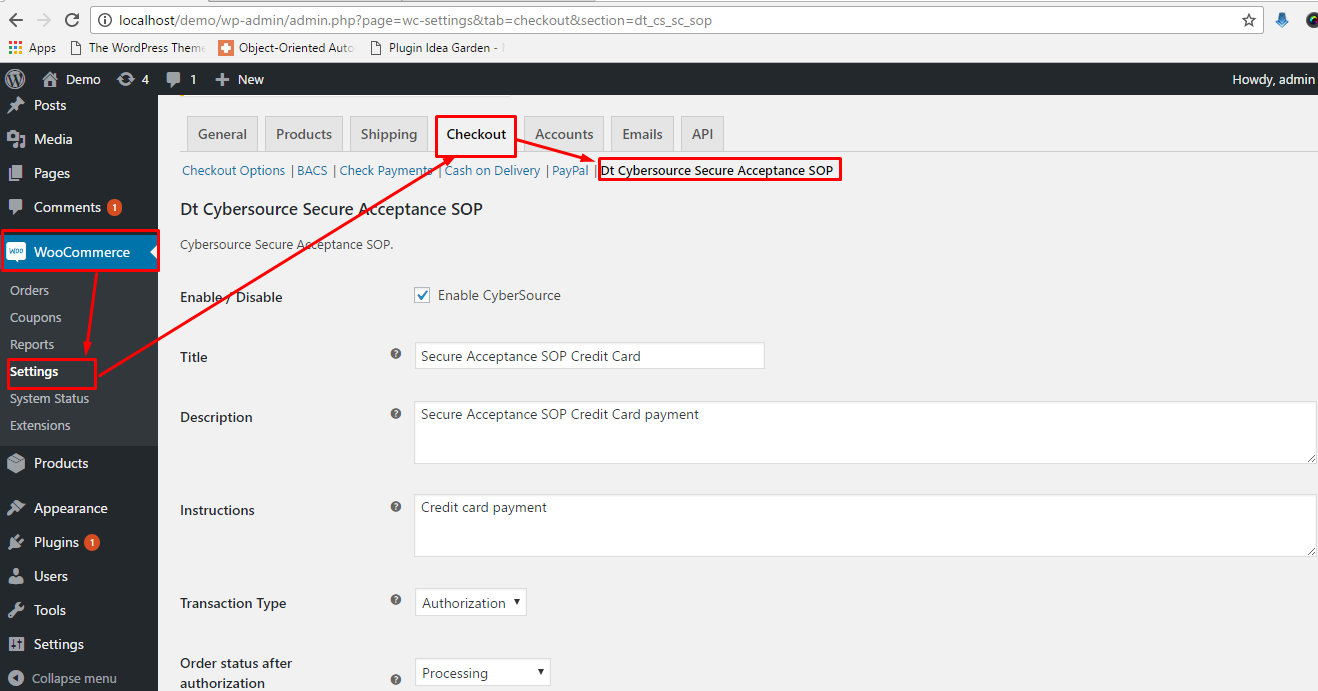
C) Gateway Settings - top
Preview of Dt Cybersource Secure Acceptance SOP Payment Gateway setting with description:
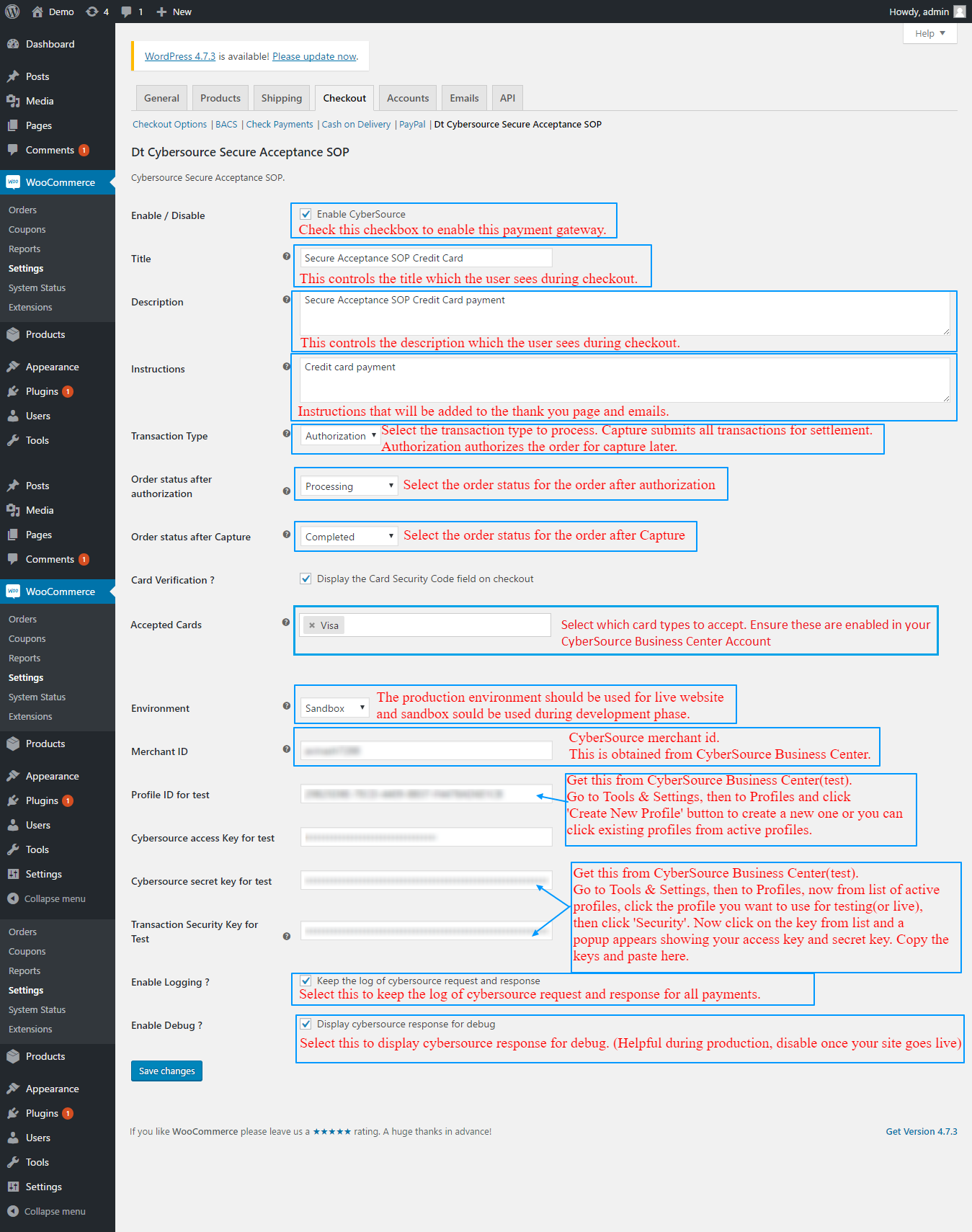
Enable/Disable : Select this checkbox to enable Cybersource Secure Acceptance (SOP) Payment Gateway, uncheck to disable this payment Gateway
Title: Enter the Title for this payment gateway (shown in checkout options)
Description: Enter short description that user can see during checkout.
Instructions: Enter Instruction that will be added to "Thank You Page" and Emails for all orders paid using this payment gateway
- Trasaction Type:
Capture submits all transactions for settlement.
Authorization authorizes the order for capture later.
Order status after authorization Select the order status for the order after authorization. All orders once authorized will have the status selected here.
Select the transaction type to process.
-
Order status after Capture: Select the order status for the order after payment is Captured.
-
Card Verification ?: Check this option to show the card security code field during payment, uncheck to disable card security pin verification.
-
Accepted Cards: Select which card types to accept. Ensure these are enabled in your CyberSource Business Center Account.(Supported: Visa, MasterCard, American Express, Discover, Maestro)
-
Envirnoment The production environment should be used for live website and sandbox sould be used during development phase.
-
Merchant ID : Enter your CyberSource Merchant ID. This is obtained from CyberSource Business Center.
-
Profile ID:
-
Log in to the Business Center:
Live transactions: https://ebc.cybersource.com
Test transactions: https://ebctest.cybersource.com In the left navigation panel, choose Tools & Settings > Secure Acceptance > Profiles.
Enter or check the following profile details.
Important Contact CyberSource Customer Support to enable your account for Secure Acceptance. You must activate a profile in order to use it.Click Create. The Configuring Payment Settings page appears.
To create a Silent Order POST profile:
Profile Detail Description Profile Name The Secure Acceptance profile name is required and cannot exceed 20 alphanumeric characters. Description The profile description cannot exceed 255 characters.. Integration Method Check Silent Order POST. Company Name The company name is required and cannot exceed 40 alphanumeric characters. Company Contact Name Enter company contact information: name, email, and phone Company Contact Email number. Company Contact Email Company Phone Number Read more about Secure Acceptance SOP. -
-
Cybersource Access Key: Get this from CyberSource Business Center. Go to Tools & Settings, then to Profiles, now from list of active profiles, click the profile you want to use, then click 'Security'. Now click on the key from list and a popup appears showing your access key and secret key.
-
Cybersource Secret Key : Get this from CyberSource Business Center. Go to Tools & Settings, then to Profiles, now from list of active profiles, click the profile you want to use, then click 'Security'. Now click on the key from list and a popup appears showing your access key and secret key.
-
Transaction Security Key Get this from CyberSource Business Center. Go to Account Management then to Transaction Security Keys , then Security Keys for the SOAP Toolkit API and click 'Generate'.
-
Enable Logging ? Select this to keep the log of cybersource request and response for all payements.
Enable Debug ? Select this to display cybersource response for debug( Helpful during Production, disable once your site goes live.)
Once All settings are done, click the Save Changes button to save your settings.
D) Payment Gateway Form Preview - top
Preview of payment form in Twenty Sixteen Theme:

E) Capture Authorised Orders - top
You can capture the order that was previously authorised.
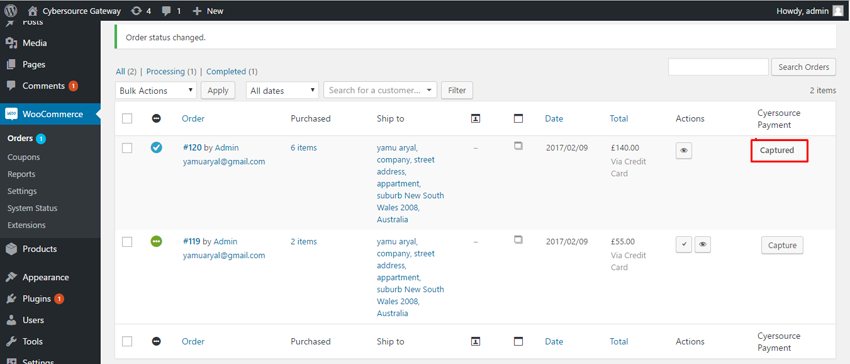
To capture the order that has been authorised, please click the "Capture button". This enables us to capture the order without going to Cybersource Website.
F) Actions - top
woocommerce_dt_cs_sc_sop_process_payment
This action is applied after the payment is processed for the order. It has "Order ID" and "Gateway ID" as arguments.
dt_cs_sop_order_transaction_accept
This action is applied after the order transaction is accepted by cybersource during processing the payment. It has "Order object" as argument.
dt_cs_sop_order_transaction_review
This action is applied after the Cybersource returns response with "REVIEW" descision during processing the payment. It has "Order object" as argument.
dt_cs_sop_order_transaction_fail
This action is applied after the order transaction fails during processing the payment. It has "Order object" as argument.
admin_capture_request_success
This action is applied after the capture request sent from backend is accepted by Cybersource. It has "Order object" as argument.
admin_capture_request_review
This action is applied after the capture request sent from backend needs review. It has "Order object" as argument.
admin_capture_request_fail
This action is applied after the capture request sent from backend fails. It has "Order object" as argument.
G) Filters - top
dt_cs_sc_sop_card_types
It has "(array)Card types" as argument.
dt_cs_sop_order_transaction_type
It has "transaction type used for the order(capture/authorization)" and "Order Id" as arguments. It is applied before sending the order transaction request to the Cybersource.
dt_cs_sop_payment_fields_wrap_classes
It has (array)classes of the wrapper that wraps payment fields in the checkout page as an argument.
dt_cs_sop_credit_card_row_classes
It has (array)classes of the' DIV' that wraps credit card number field in the checkout page as an argument.
dt_cs_sop_credit_card_type_row_classes
It has (array)classes of the' DIV' that wraps credit card type field in the checkout page as an argument.
dt_cs_sop_credit_card_exp_date_row_classes
It has (array)classes of the' DIV' that wraps credit card expiration month and year fields in the checkout page as an argument.
dt_cs_sop_card_security_code_row_classes
It has (array)classes of the' DIV' that wraps credit card security code field in the checkout page as an argument.
admin_capture_accept_order_note
This filter has (string)"Order Note" (that is added after the order is captured successfully by admin in backend) as an argument.
admin_capture_review_order_note
This filter has (string)"Order Note" (that is added after the order is captured by admin in backend but needs review ) as an argument.
admin_capture_fail_order_note
This filter has (string)"Order Note" (that is added after the order is captured by admin in backend but the request fails ) as an argument.
dt_cs_sop_transaction_approved_order_note
This filter has (string)"Order Note" (that is added after the order is placed by customer using cybersource payment gateway and is approved) as an argument.
dt_cs_sop_transaction_review_order_note
This filter has (string)"Order Note" (that is added after the order placed by customer using cybersource payment gateway needs review) as an argument.
dt_cs_sop_transaction_review_notice
This filter has (string)"Notice" (that is added after the order placed by customer using cybersource payment gateway needs review) as an argument.
dt_cs_sop_transaction_fail_order_note
This filter has (string)"Order Note" (that is added after the order placed by customer using cybersource payment gateway fails due to error) as an argument.
dt_cs_sop_transaction_fail_notice
This filter has (string)"notice" (that is added after the order placed by customer using cybersource payment gateway fails due to error) as an argument.
Once again, thank you so much for purchasing this plugin. As I said at the beginning, I'd be glad to help you if you have any questions relating to this plugin. No guarantees, but I'll do my best to assist. If you have a more general question relating to this plugin on CodeCanyon, you might consider visiting the forums and asking your question in the "Item Discussion" section.
Nepcode